
DeepSeek Harness on Windows: Installing dsh Without the 25-Minute Hang
Almost every widely reported installation failure for DeepSeek Harness turns out to be a Windows problem, and the cause is not the program itself — it is the one-line quick-start command in the repository’s README. Swap that single command for the right package manager and the same install that hangs for 25 minutes or crashes with an out-of-memory error finishes in under a minute.
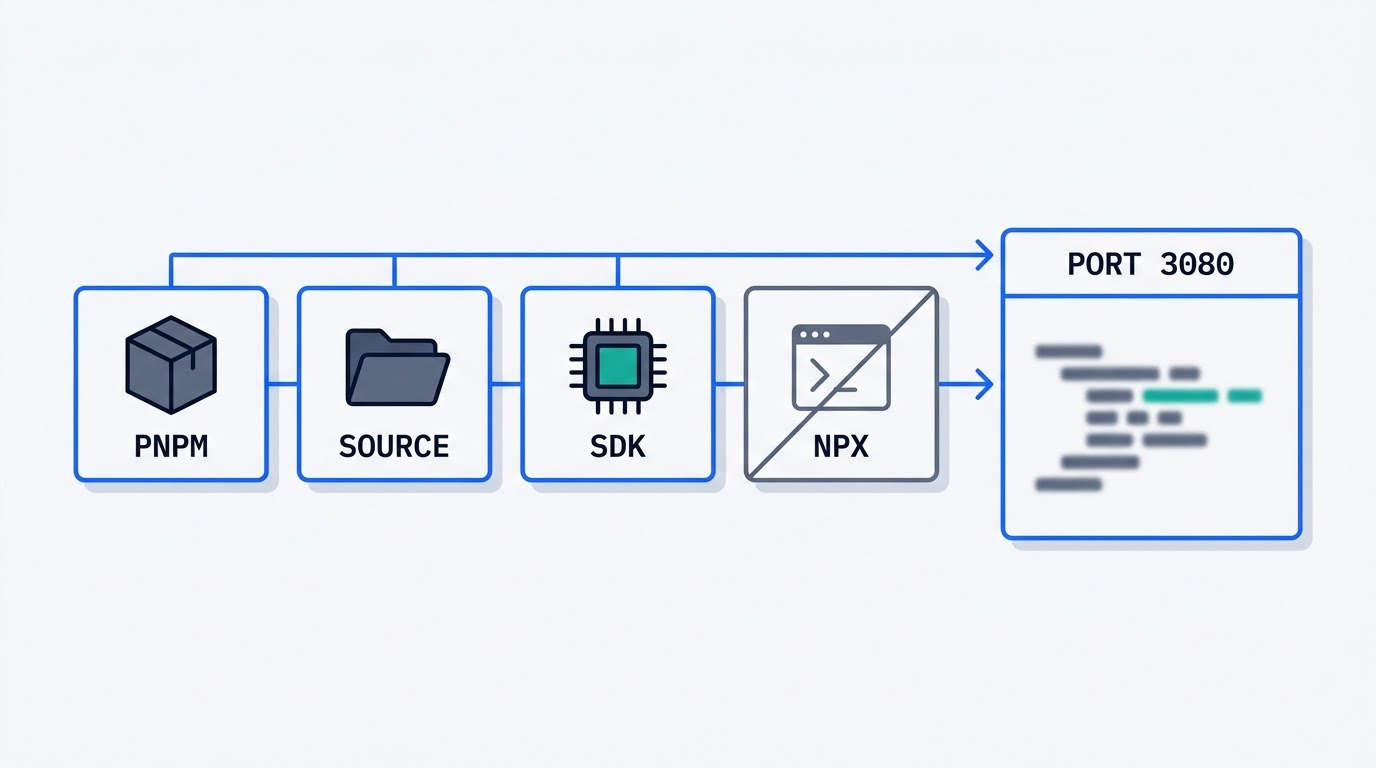
This page is published by the DSH Field Guide, an independent community resource. It is not affiliated with, endorsed by, or operated by DeepSeek, and “DeepSeek” and “DeepSeek Harness” are trademarks of their respective owner. What follows is a working install sequence and a list of what to do when each specific step breaks, assembled from the project’s own GitHub Discussions and documentation.
The short answer: yes, it runs on Windows, but not the way the README says
DeepSeek Harness (dsh) is a real, working tool on Windows 10 and Windows 11. It shipped as a public release on 13 August 2026 alongside DeepSeek-V4-Pro-0813 — announced the same day on the official DeepSeek account — with DeepSeek Harness capabilities having already shipped quietly inside the V4 release of 31 July 2026, and the earliest commit visible in the public history dated 14 August, which is why some write-ups give that later date as the open-source date. It is labeled a developer preview, and its README warns in capital letters that breaking changes should be expected. Issues and pull requests are disabled on the main repository; the project routes feedback through GitHub Discussions and Discord instead. The current version at the time of writing is 0.1.2-rc.1, dated 3 September 2026, and the project is released under the MIT license. There is no official Windows installer, no .exe, and no Microsoft Store package — anything marketed as “DeepSeek Harness for Windows” outside the npm package, the source, and the Python SDK is a third-party project.
There is no official Windows installer
The README gives exactly one quick-start path, identical for every operating system: install Node.js, then run npx @deepseek-ai/dsh web. The server starts on http://127.0.0.1:3080, and a --no-open flag skips launching a browser automatically. That single command is the entire official installation story. Nothing in the README is Windows-specific, which is precisely why the failures below are so common on that platform and largely absent from macOS and Linux reports.
What you actually need before you start
The engines field requires Node.js ^22.19.0 || >=24.0.0 — in practice, this means one of the two currently active LTS lines, 22 (“Jod”) or 24 (“Krypton”). The repository pins [email protected] as its packageManager, and pnpm — not npm — is the tool the project actually builds and tests with. TypeScript 6 is only needed if you are compiling from source rather than running the published package. Before running anything with elevated permissions, the README points to SAFETY.md, which is worth reading first since no security audit of the project has been published.
| Requirement | Value |
|---|---|
| Node.js | ^22.19.0 or >=24.0.0 |
| Package manager | pnpm 11.7 (pinned in packageManager) |
| Build-from-source only | TypeScript 6 |
| License | MIT |
| Latest version (as of this writing) | 0.1.2-rc.1, 3 September 2026 |
Why npx breaks on Windows: 25 minutes or an out-of-memory crash
The single biggest source of Windows-specific complaints traces back to one command: npx @deepseek-ai/dsh. On a Windows 10 machine with Node 22.16 and 16 GB of RAM, one report in the project’s Discussions logged npx -y @deepseek-ai/dsh --version printing nothing for 1,530 seconds — about 25 minutes — before finally returning a version string. A warm npm cache did not meaningfully help: the second run still took 1,525 seconds, which rules out a slow download as the culprit. The same dependency tree installed through pnpm, cold store, took 19 seconds for 197 packages totaling roughly 260 MB — a gap of around 80 times.
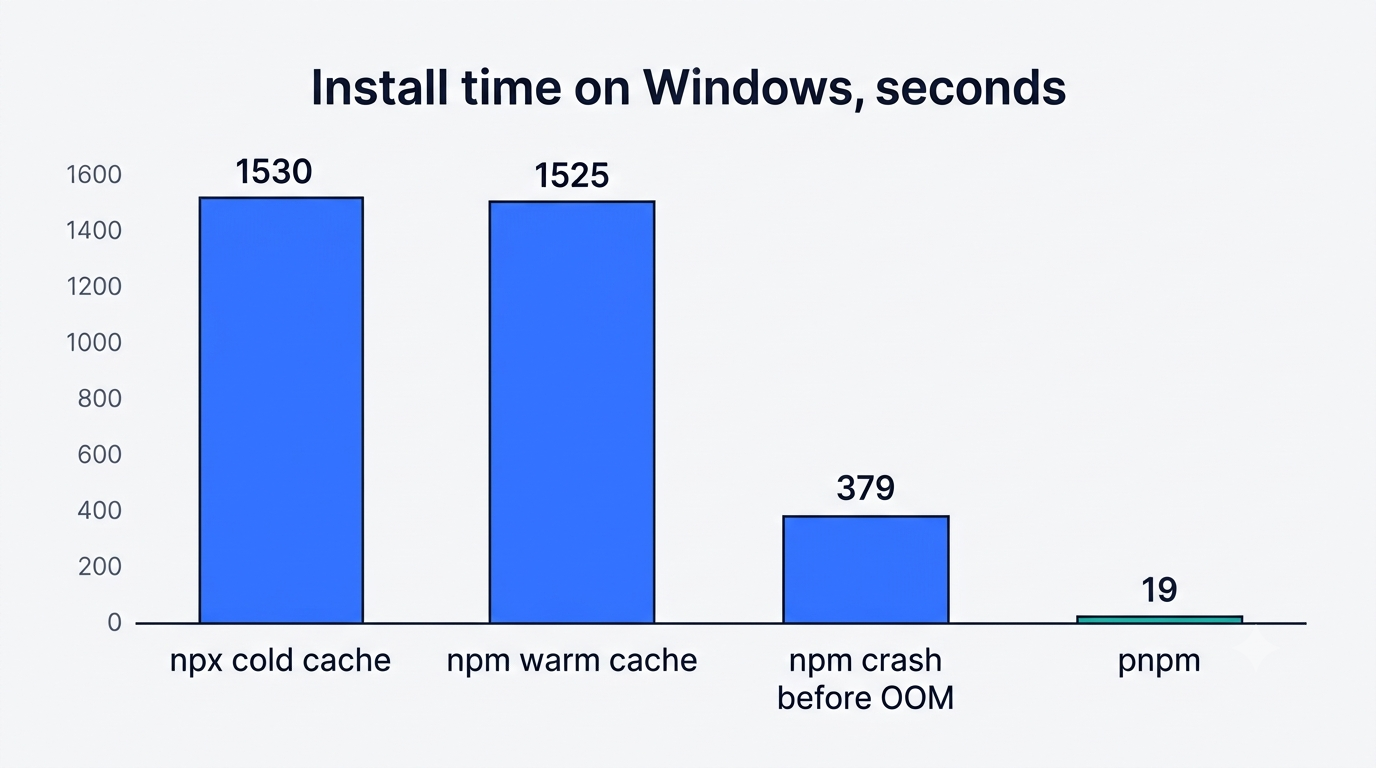
On a beefier Windows 11 Pro machine (Node 24.19, 14.9 GB RAM), the failure mode changes from slow to fatal: npm install @deepseek-ai/dsh died after 379 seconds with zero packages installed, and npx ... web died after roughly 523 seconds. The crash comes from Node’s own memory allocator inside the npm resolver:
FATAL ERROR: Reached heap limit Allocation failed – JavaScript heap out of memoryDeepSeek Harness GitHub Discussion #4872
The two failure shapes
The first shape is a silent hang: the process runs for tens of minutes without any console output before eventually succeeding or timing out, as in the 25-minute case above. The second is an outright crash, with V8’s Mark-Compact garbage collector reported climbing to 2,027–2,035 MB of heap before Node aborts. Which one you hit depends mostly on available RAM and the specific npm version resolving the tree, but both traces back to the same root cause.
The real cause is the npm resolver, not dsh
DeepSeek Harness itself starts in under a second once installed, and none of its packages ship a postinstall script — so the bottleneck is not the tool running slowly, it is npm’s resolver (Arborist) working through a dependency graph of roughly 500 internal dsh-* packages with cyclic peer dependencies, combined with Windows’ comparatively slow file-system operations during serial extraction. The project is pnpm-native end to end: it is built with pnpm, its workspace profiles ship a pnpm-workspace.yaml, and the internal dsh plugin command forwards its arguments straight to pnpm. The npm install path is simply never exercised in the project’s own CI.
Why --legacy-peer-deps is a trap
Adding --legacy-peer-deps to the npm command does make the install finish fast — about 36 seconds in the reported case — but it does so by skipping peer dependencies the runtime actually needs. The result is a clean-looking install that fails the moment you try to run it: ERR_MODULE_NOT_FOUND: Cannot find package '@deepseek-ai/cordis-plugin-group'. It is a faster way to fail, not a fix.
The working install sequence on Windows
Once you stop using npx and switch to pnpm, the same dependency tree that hung or crashed installs cleanly. With auto-install-peers=true set, pnpm resolved 504 packages (448 newly added) in roughly 50 seconds and printed the expected dsh web: http://127.0.0.1:3080 startup line. An even shorter path worked with zero configuration at all: pnpm dlx @deepseek-ai/[email protected] web --no-open started the server directly, and a follow-up curl.exe -I against 127.0.0.1:3080 returned HTTP/1.1 200 OK.
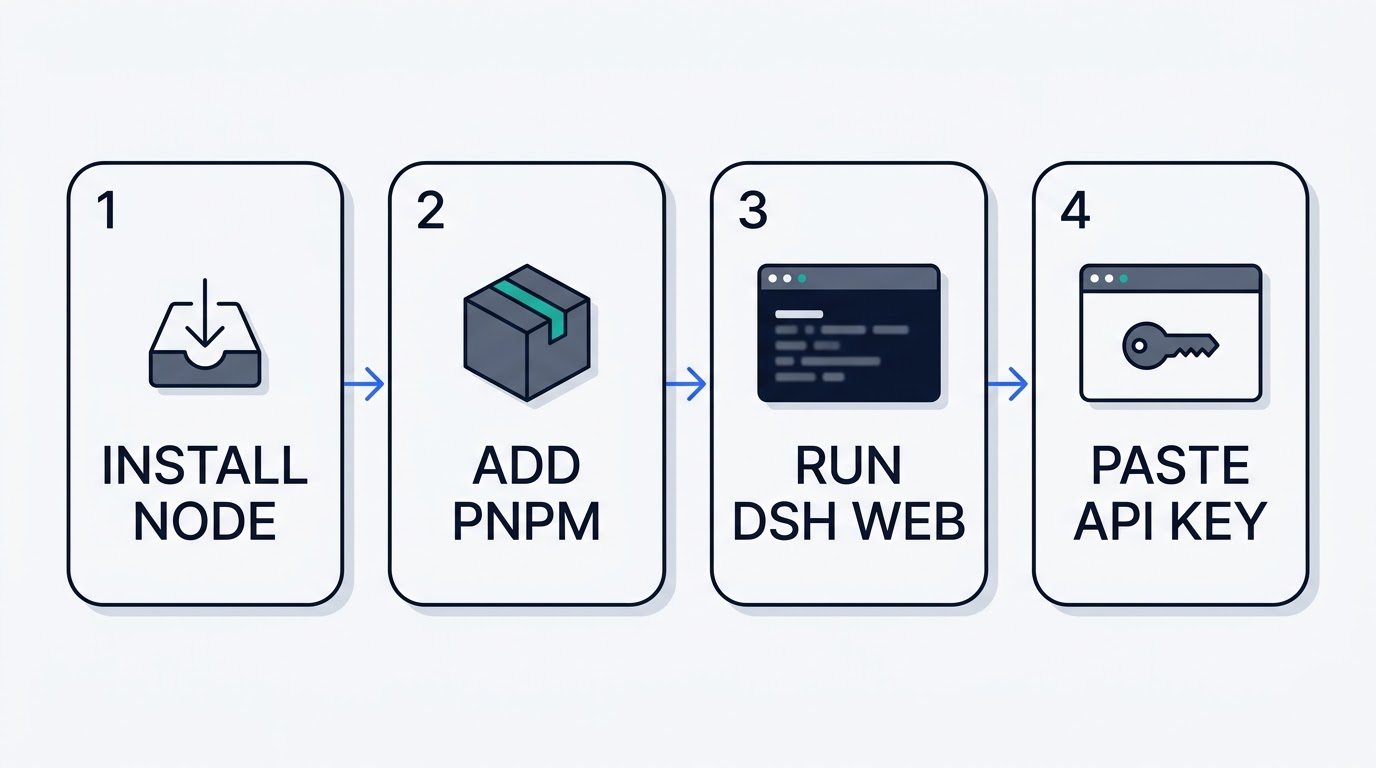
One config detail matters here: in pnpm 11, running pnpm config set auto-install-peers true globally is rejected outright — the setting has to be declared in a project’s pnpm-workspace.yaml or passed through the PNPM_CONFIG_AUTO_INSTALL_PEERS environment variable instead. pnpm’s own installation docs also flag that Windows Defender sometimes blocks the PowerShell installer script, and recommend installing pnpm through npm on Windows plus adding the pnpm store path to Defender’s exclusions.
- Install Node.js 22.19+ or 24+. Either active LTS line satisfies the
engines.noderange; grab an installer from the official Node.js release page if you need a specific LTS build. - Install pnpm through npm or Corepack, not the PowerShell script. This sidesteps the Defender-blocking behavior pnpm’s own docs describe.
- Add the pnpm store path to Windows Defender’s exclusions, using
Add-MpPreference -ExclusionPath $(pnpm store path)in an elevated PowerShell session. - Try the zero-install path first:
pnpm dlx @deepseek-ai/dsh web. This was the shortest route confirmed working on Windows 11 and needs nothing installed into a project. - If you want a persistent project instead, run
pnpm init, then set the peer-install flag and add the package:PNPM_CONFIG_AUTO_INSTALL_PEERS=true pnpm add @deepseek-ai/dsh. - Start the server and confirm it is listening on
http://127.0.0.1:3080(or check withcurl.exe -Iif you used--no-open). - Open the web UI, go to Settings → Models, and paste an API key generated at platform.deepseek.com — the change takes effect without restarting the server.
Step 1 — Node and pnpm
Install Node 22.19+ or 24+, then install pnpm through npm or Corepack rather than its PowerShell installer, and add the pnpm store directory to Defender’s exclusion list before running any install.
Step 2 — run it without installing anything
pnpm dlx @deepseek-ai/dsh web is the shortest confirmed-working path on Windows 11: no project folder, no lockfile, no configuration flags needed.
Step 3 — or install into a project folder
Run pnpm init to create a project, then PNPM_CONFIG_AUTO_INSTALL_PEERS=true pnpm add @deepseek-ai/dsh before starting the server. That flag matters: without auto-install-peers enabled, the same @deepseek-ai/cordis-plugin-group peer dependency that breaks the --legacy-peer-deps npm shortcut goes missing here too, at roughly 504 packages resolved (448 newly added) in about 50 seconds when it is set correctly. The wider picture of what dsh harness does with all this is on the guide’s front page.
Step 4 — first run in the browser
Go to Settings → Models and paste an API key from platform.deepseek.com, where the official API documentation lists the model names and limits for deepseek-v4-pro and deepseek-v4-flash; the change routes through immediately, no server restart required. Add and select a working folder next — the input field for prompts stays disabled until a workspace folder is chosen. The key itself is written to .credentials.yaml inside $DSH_HOME (which defaults to ~/.dsh), and the interface displays it masked afterward. As of this writing, the available model names in the picker are deepseek-v4-flash, deepseek-v4-pro, and deepseek-v4-flash-vision-exp.
When the second launch fails: junction vs symlink
An install that worked the first time can fail on the very next launch with an error like dsh: C:\Users\<user>\.dsh\profiles\node_modules\@deepseek-ai\dsh exists and is not a symlink; remove it so dsh can manage the installation. This is a Windows-specific quirk, not a corrupted install. The relevant code, ensureSymlink in packages/boot/app-boot/src/profile.ts, calls symlinkSync(target, link, 'junction') — meaning it deliberately creates an NTFS junction on Windows rather than a true symbolic link.
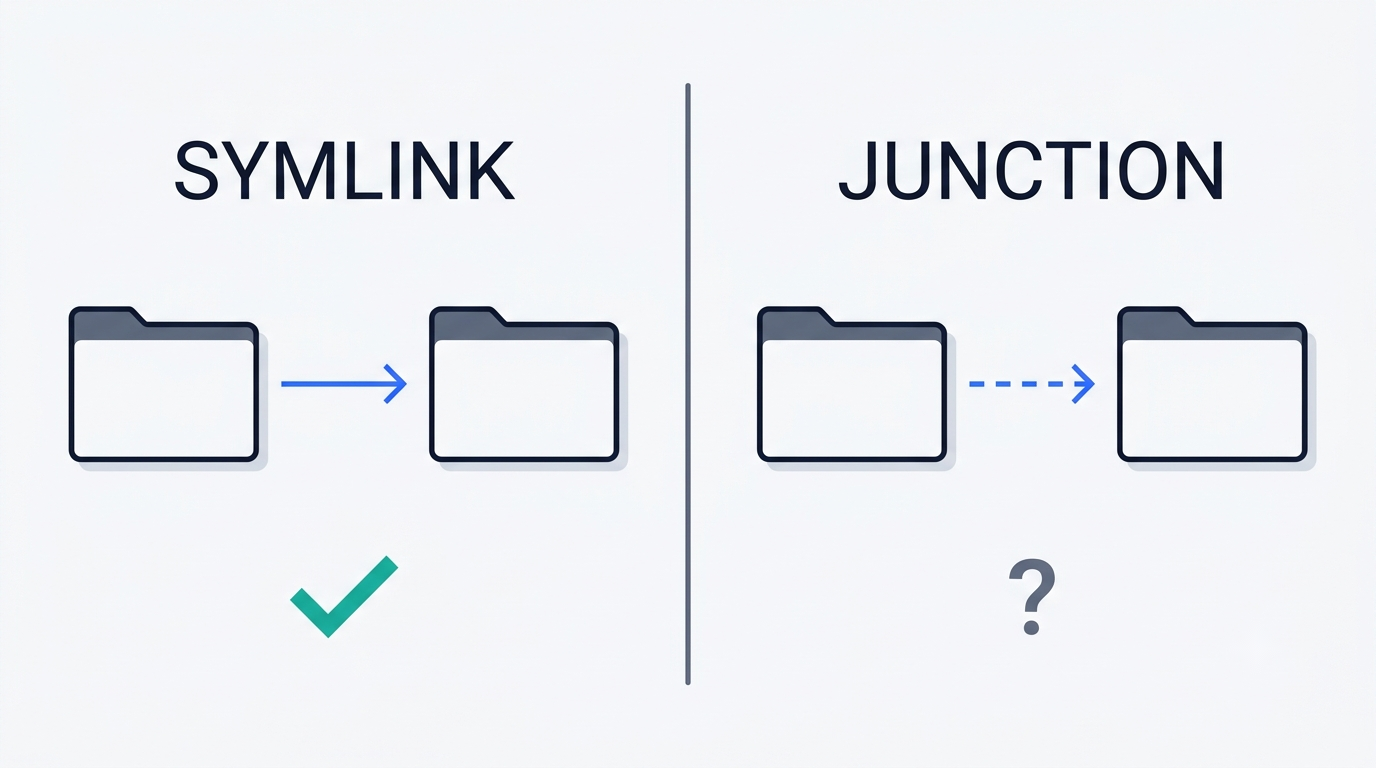
The problem is that Node’s lstatSync().isSymbolicLink() always reports false for a junction, because junctions and symlinks are different kinds of NTFS reparse points, even though readlinkSync can still read the junction’s target correctly. This was reproduced on Windows 11 with Node 22.16 and dsh 0.1.0-rc.6, and a fix has been proposed in a community fork — but with pull requests disabled on the main repository, it has not landed upstream.
What to do right now
Delete the exact folder named in the error message and relaunch — dsh recreates it correctly on the next run. If you would rather avoid the loop entirely, install dsh into a dedicated project folder instead of letting it manage a fresh profile directory on every launch.
Why file edits fail: ReplaceFileW, DACL and your antivirus
A second recurring failure shows up once you are actually using dsh to edit files, not just running it. On Windows 11 build 26200.8875 with dsh 0.1.0-rc.6, overwriting an existing file often — not always — fails with ReplaceFileW EIO (Win32 32): E:\vibecoding\xxx.md, as documented in a detailed bug report from the project’s Discussions. Creating a brand-new file is unaffected, and an immediate retry of the same overwrite usually succeeds. Win32 error code 32 is ERROR_SHARING_VIOLATION, though the tool’s own win32Error() mapping collapses everything except codes 2, 3, and 5 into the same generic EIO, which obscures the real cause in the message you actually see.
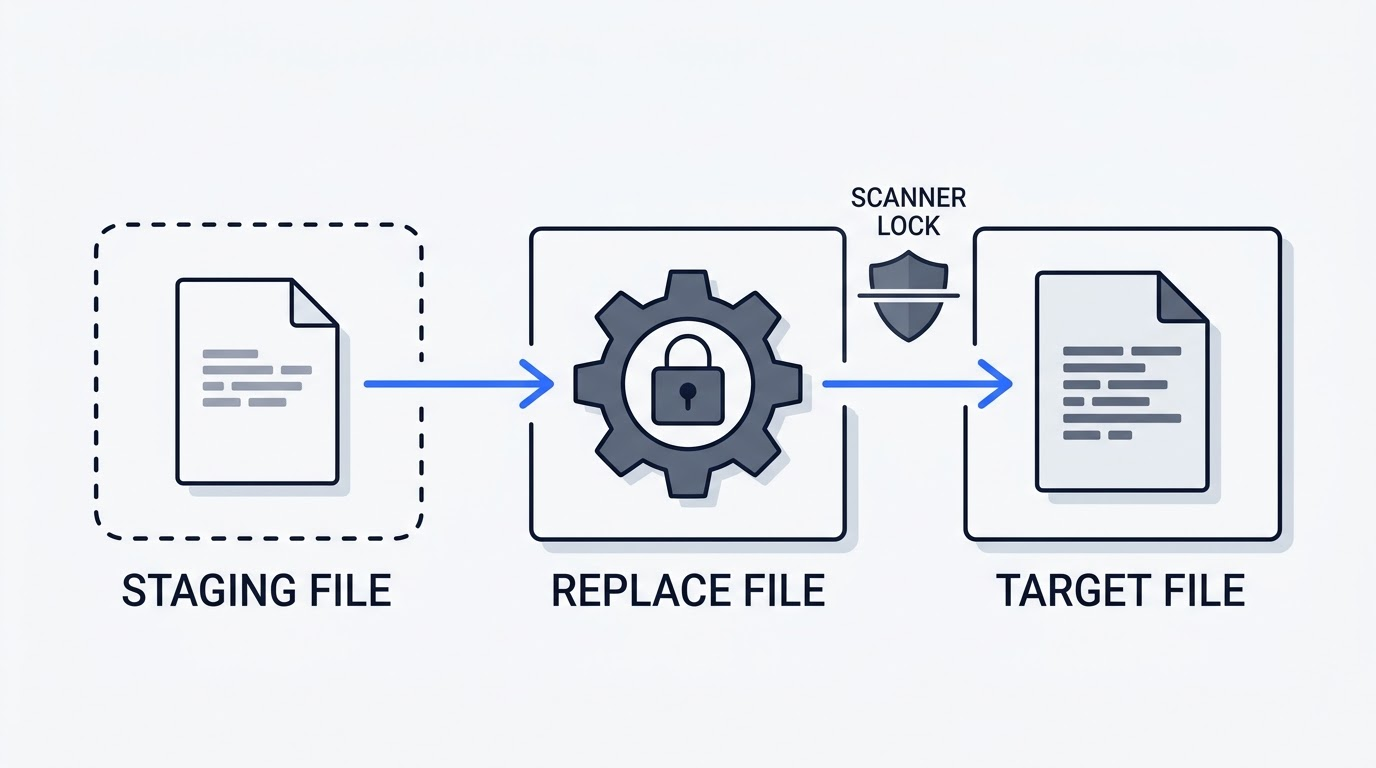
Internally, writeFileAtomic writes to a temporary file in a staging subfolder, then immediately calls ReplaceFileW through the koffi native bridge specifically to preserve the target file’s DACL (its access-control list) across the overwrite. The fallback to a plain rename only triggers on ENOENT, and there is no built-in retry loop — so a transient lock turns into a hard failure instead of a quiet second attempt. The most likely explanation, per the discussion thread, is Windows Defender’s real-time protection holding a scan handle open on the freshly created staging file at exactly the moment ReplaceFileW tries to claim it.
Practical fixes
Add your working folder to Windows Defender’s exclusion list before you start editing files through dsh. When a single overwrite fails, simply retrying the same edit is usually enough. For a file that fails consistently rather than occasionally, Sysinternals’ handle.exe can show you exactly which process is holding the lock.
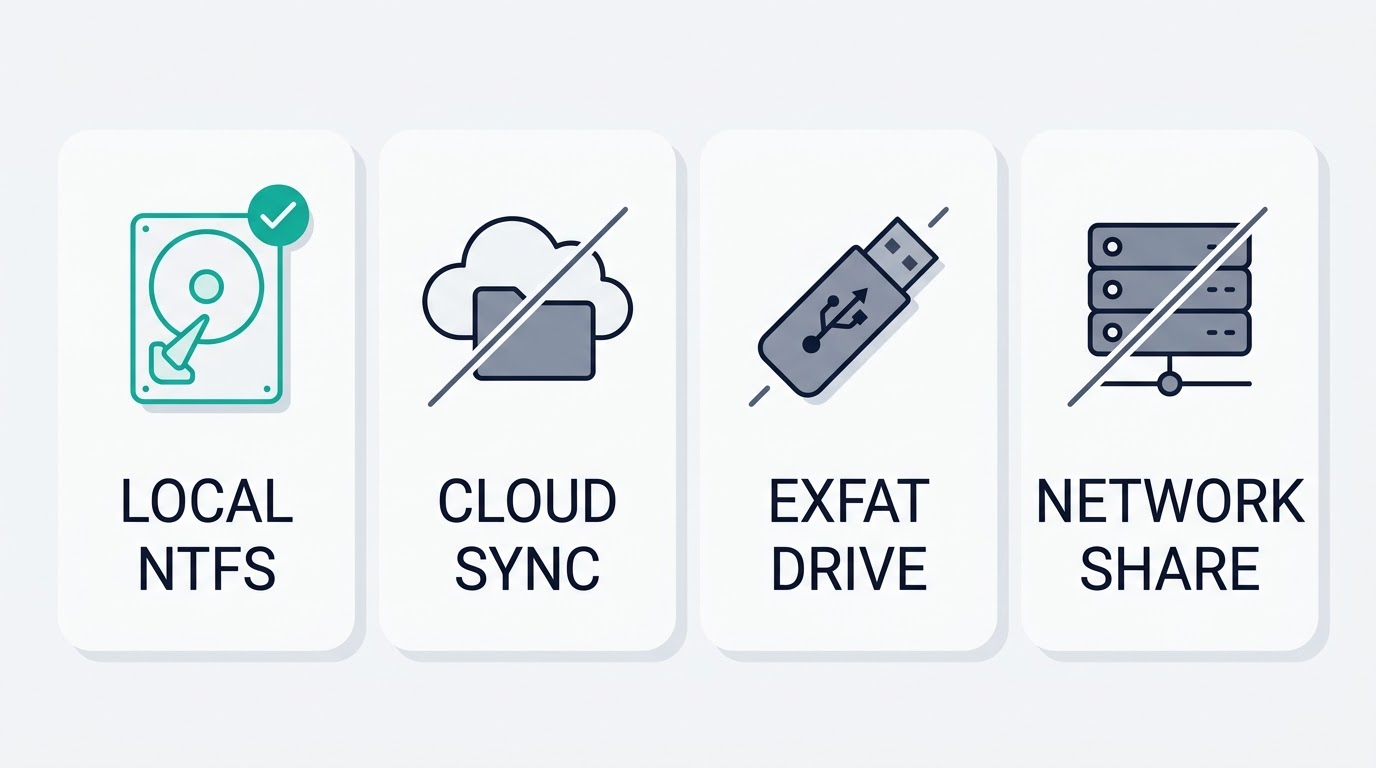
Cloud folders, exFAT and network shares: don’t put the workspace there
| Volume type | What breaks |
|---|---|
| Google Drive Desktop (virtual FS) | New-file writes fail with EISDIR: illegal operation on a directory, link '<staging>\<name>.tmp' -> '<target>'; overwrites fail with SetFileSecurityW EIO (Win32 87) |
| OneDrive (virtual FS) | Same class of failure; pwsh under workspace-write also fails to initialize with SetNamedSecurityInfoW failed (Win32 87) |
| exFAT / FAT32 | No hard-link support at all — any no-replace write fails even against a brand-new path; reproduced on an external 4 TB exFAT drive with an NTFS system disk |
UNC network share (\\host\share) | SetFileSecurityW returns Win32 error 5 (ACCESS_DENIED); the bytes are already written to the target, but the operation still reports failure |
The common thread across all four rows is the same: writeFileAtomic‘s publish step depends on hard links and DACL preservation, and none of those volume types support that combination the way a real local NTFS drive does.
The one-line rule
Keep the working folder on an actual local NTFS drive. Not inside a Google Drive Desktop or OneDrive sync folder, not on an exFAT flash drive or external disk, and not on a network share. Running with the danger-full-access profile flag works around these errors by dropping the sandboxing that produces them in the first place, but that trades away exactly the protection the sandbox exists to provide.
The console window popping up on every command
Every command the agent runs through its sandboxed shell (pwsh -NoLogo -NoProfile -NonInteractive -Command …) opens a visible console window on screen — one window per tool call, so a busy session can flash through dozens of them. The cause is intentional: the sandbox runner spawns the process through CreateProcessAsUserW under a restricted token, without the CREATE_NO_WINDOW flag, because — as confirmed empirically in the project’s Discussions — child processes spawned with a hidden console under that same restricted-token scheme die instead, with STATUS_DLL_INIT_FAILED (0xC0000142). Setting windowsHide: true on the outer spawn call does not help either, since it only hides the outer Node process, not the pwsh child it launches. The affected packages are dsh-sandbox-windows-acl and dsh-subprocess-local.
Status
This is documented, known behavior with a community-proposed fix — giving the runner one hidden console window for its children to inherit, rather than none at all — but with pull requests closed on the main repository, that fix has not shipped. Until it does, the flashing console windows are a cosmetic cost of the current sandboxing tradeoff, not a bug you can configure away.
WSL2, containers and the Python SDK
The project ships no official Docker image, though SAFETY.md and the official documentation recommend a disposable VM or container as a way to limit blast radius given the absence of a published security audit. WSL2 does not sidestep the npm installation problem either: inside a WSL2 instance capped at 3 GB of memory, the same npx install crashed from out-of-memory after roughly 323 seconds with a peak heap around 1.8 GB. In other words, WSL2 does not fix the resolver problem — switching to pnpm does, whether you run it on native Windows or inside WSL2.
The one path that avoids the Node package-manager problem entirely is the Python SDK. Installed with pip install deepseek-harness-sdk on Python 3.10+, it targets a fixed whitelist of platforms: Linux x64, Linux arm64, macOS 14+ arm64, and Windows x64. The SDK bundles its own native runtime, so no system Node.js installation is required at all. A typical PowerShell setup looks like:
py -3.10 -m venv .venv
.venv\Scripts\Activate.ps1
python -m pip install deepseek-harness-sdk
$env:DEEPSEEK_API_KEY = "your-key"
The 0.1.2-rc.1 changelog, dated 3 September 2026, explicitly lists the Python SDK’s Windows x64 native runtime as a new addition, alongside a fix for the Windows directory picker that was previously truncating paths containing URL-encoded characters. The SDK’s sdk-minimal profile pins the danger-full-access permission level and a 300-second shell timeout by default. For everything this tool does beyond getting installed, start from the DeepSeek Harness guide.
Does WSL2 help?
It isolates the process, but it does not fix the underlying install problem — the same out-of-memory crash happens inside WSL2 if you still try to install with npx on a memory-constrained machine. Switching to pnpm is required either way.
Is there a Docker image?
Not an official one. Anyone running dsh in a container is building that image themselves, though SAFETY.md explicitly recommends exactly that kind of disposable environment.
The Python SDK path
Of everything covered here, this is the only route that fully sidesteps the Node.js package-manager problem on Windows, since the SDK wheel brings its own runtime rather than depending on npm or pnpm at all.